

Let's have a look at Microsoft’s hostile architecture, the brilliance of Linux, and the lightweight future of Aluminum OS.
The problem
If you’ve turned on your Windows PC recently and felt a distinct rise in blood pressure, you are not alone.
There is a palpable sense of exhaustion in the tech community right now. For decades, the Operating System was a tool, a quiet, stable foundation upon which we built our digital lives. We owned the hardware, we installed the OS, and it served us.
Somewhere in the last few years, that dynamic inverted. We no longer use Windows; Windows uses us.
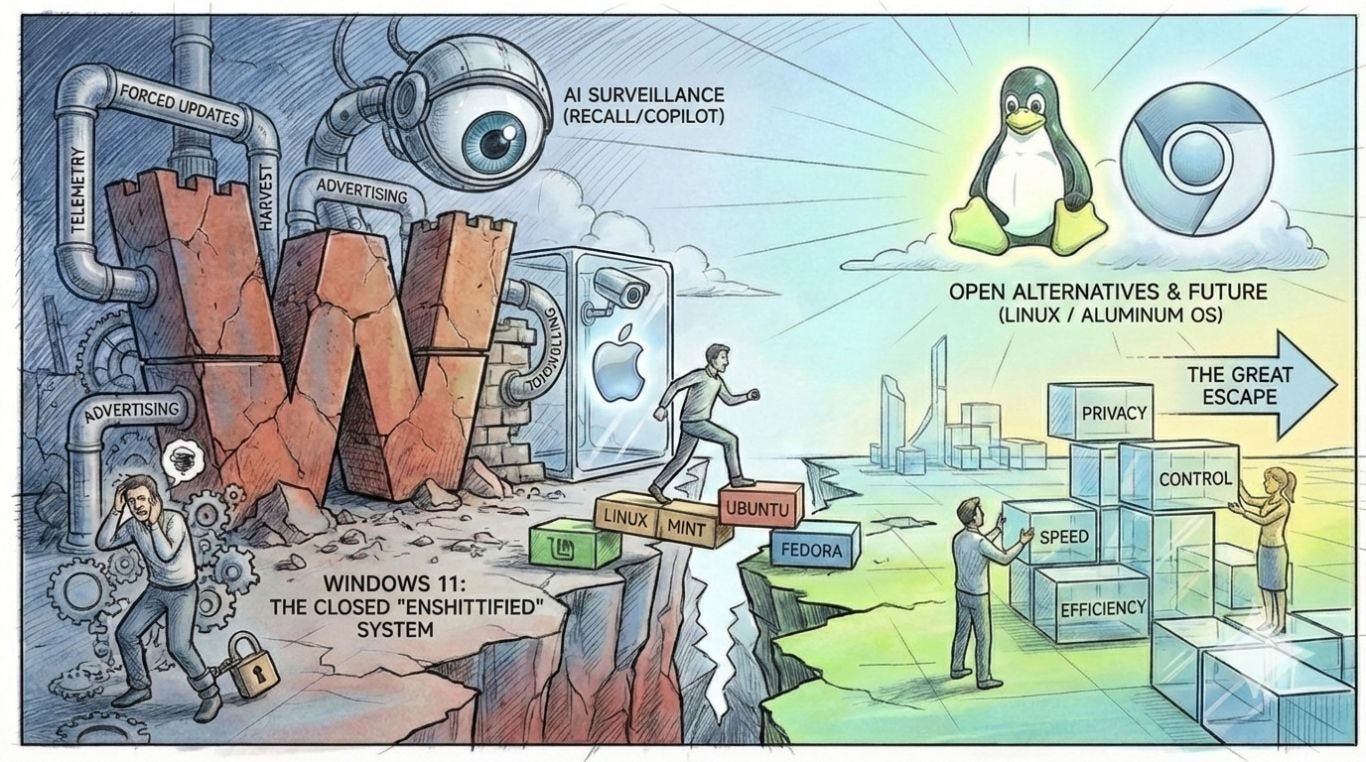
The current state of Windows 11 is not just a matter of bad design choices or buggy updates. It is the result of a fundamental shift in corporate philosophy at Microsoft, accelerating under CEO Satya Nadella, that views the desktop not as a user’s sanctuary, but as corporate real estate ripe for aggressive monetization, data harvesting, and forced feature injection.
We are living through a crisis of the personal computer. It’s time to diagnose the disease and look seriously at the escape routes.
The Diagnosis: "Enshittification" by Design
Tech commentator Cory Doctorow famously coined the term "enshittification" to describe how platforms decay: first they are good to their users, then they abuse their users to make things better for their business customers, and finally, they abuse those business customers to claw back all the value for themselves.
Windows 11 is perhaps the most glaring example of this phenomenon in the hardware space.
As highlighted in excellent recent analyses, including ColdFusion’s viral breakdown "The Windows 11 Crisis," the OS has become actively hostile to its user base. This isn't accidental; it's architectural.
Here is the reality of the modern Windows experience:
1. The AI Bloatware Nobody Asked For
Microsoft has bet the farm on OpenAI, and Windows users are paying the price. The integration of COPILOT is not a helpful feature; it is an intrusive layer of surveillance and resource drain jammed into the taskbar.
They are trying to force a paradigm shift to AI-based computing by making the traditional desktop experience worse. The recent debacle regarding "RECALL", a feature designed to constantly screenshot your activity, was a mask-off moment for privacy advocates. Even when "off," the infrastructure for massive user surveillance is being baked into the kernel.
2. The Telemetry Mosquito
Try setting up a Windows 11 Pro machine today without a Microsoft account. It requires registry hacks or disconnecting the internet at precise moments. Why? Because a local account generates less data. Microsoft’s insistence on tethering your local machine to their cloud is about control and telemetry. They want to know what you launch, how long you use it, and where you click, feeding the advertising beast.
3. The E-Waste Generator (Hardware Requirements)
Perhaps the most cynical move with Windows 11 was the arbitrary hardware gatekeeping, specifically the TPM 2.0 requirement. Overnight, millions of perfectly capable, powerful CPUs from just a few years ago were declared obsolete.
This isn't about security; if it were, they wouldn't allow those requirements to be bypassed so easily by enthusiasts. It is about forced obsolescence designed to juice PC sales, creating an environmental disaster of perfectly functional e-waste in the process.
4. The Tyranny of Updates
We still live in a world where you can walk away from your PC for a coffee and come back to find it rebooting for an update you explicitly paused, potentially losing work. The user is not trusted to manage their own machine.
The Landscape Survey: Weighing the Contenders
If we judge an operating system on the basic pillars of Stability, Privacy, Resource Efficiency, and User Control, how does the current landscape stack up?
The Incumbent: Windows 11
Verdict: Fails on nearly every metric except software compatibility. It is unstable, privacy-invasive, bloated, and actively wrests control away from the user. It is heading in a dystopian direction.
The Walled Garden: macOS
Verdict: Many frustrated Windows users look to Apple as the premium escape hatch. But be careful. While macOS is currently more polished and private than Windows, Apple is marching toward the exact same destination, just taking a scenic route.
Apple's control over their ecosystem is absolute. They are increasingly locking down the OS, fighting right-to-repair, and introducing their own unavoidable "Apple Intelligence" layers. It is not an open alternative; it is just a nicer cage.
The Sanctuary: The Brilliance of Linux
Verdict: If you value control, privacy, and efficiency, Linux is no longer just a viable alternative; it is the superior choice.
The strides made by distributions like Linux Mint (for those wanting a familiar feel), Ubuntu (for ease of support), and Fedora or Debian (for rock-solid stability) are staggering.
Modern Linux takes resources that Windows 11 chokes on and makes them fly. It respects your privacy by default. It updates when you tell it to. It is the last bastion of the "Personal Computer" ethos. The gaming landscape, thanks to Valve's Proton, has also largely been solved.
The Future horizon: Chrome OS and "Aluminum" OS
Verdict: We must also look ahead. For the vast majority of users who live in a browser, the heavy, bloated desktop OS is overkill.
Chrome OS has quietly cornered the market on simplicity and security. But the real excitement is brewing around Google’s rumored push to merge Android’s capability with a desktop interface, often referred to in leaks as a project akin to "Aluminum OS."
A lightweight, incredibly cheap, ARM-based future designed for web apps and Android integration is coming. It will likely run better on older resources than Windows ever could, posing the first real existential threat to Microsoft's dominance in the casual market.
How to transition from Windows to Linux
The idea of deleting Windows and installing a completely new operating system sounds terrifying to most people. Microsoft relies on that fear to keep you locked in.
But the reality? Installing a modern Linux distribution in 2026 is often faster and requires fewer reboots than a major Windows 11 update. Here is your straightforward, step-by-step escape plan.
Service note: If you are based in Australia and your small business location switching to Linux, you can book me in via cyberkite.com.au
1. Pick Your Sanctuary (Choose a "Distro")
Linux isn't just one operating system; it comes in different flavors called "distributions" or "distros."
The Best Starting Point: Download Linux Mint (Cinnamon Edition). It is specifically designed to feel incredibly familiar to Windows users. The start menu, taskbar, and system tray are right where your muscle memory expects them to be.
The Alternatives: Ubuntu (highly supported and widely used) or Fedora (for those wanting cutting-edge updates) are also fantastic, user-friendly choices.
2. Back Up Your Digital Life
Before you do anything, back up your important files, photos, and documents to an external hard drive or a cloud service. Transitioning is safe, but human error happens. Protect your data first.
3. Forge the Key (Create a Bootable USB)
You will need a USB flash drive (at least 8GB).
Download the .iso file of your chosen Linux distro from their official website.
Download a free, open-source tool like Rufus (Windows) or BalenaEtcher (Mac/Windows).
Use the tool to "flash" or write the Linux .iso file onto your USB drive. This turns your thumb drive into a mini, self-contained computer.
4. Take the "Live" Test Drive
Here is the absolute best part about Linux: You can try it before you install it.
Plug the USB into your PC and restart. As your computer boots up, press the key to enter your boot menu (usually F12, F2, or Del) and select the USB drive.
Linux will boot into a "Live Environment." It runs entirely off the USB stick without touching your Windows hard drive. Connect to your Wi-Fi, open the web browser, play a video, and see how snappy it feels. If you don't like it? Just unplug the USB and restart. You’ll be right back in Windows 11.
5. Make the Jump (Installation)
If you love the test drive, look for the "Install Linux" icon right there on the live desktop. The installation wizard will guide you through the process. It will give you two main options:
Dual Boot: Install Linux alongside Windows. Every time you turn on your PC, it will ask which OS you want to use. (Great for keeping Windows around for that one specific app or game you can't part with).
Wipe the Slate Clean: Erase Windows entirely and give your PC a fresh, telemetry-free life.
6. Embrace the FOSS (Free and Open Source Software) Ecosystem
Once installed, you’ll discover that almost everything you do in a web browser (Chrome, Firefox, Edge, Brave) works exactly the same. For desktop apps, there is a rich ecosystem of free replacements:
Instead of Microsoft Office, use LibreOffice or OnlyOffice.
Instead of Photoshop, use GIMP or Krita.
Instead of Premiere Pro, use DaVinci Resolve or Kdenlive.
For gaming, simply install Steam. Thanks to Valve’s "Proton" compatibility layer, the vast majority of your Windows games will run seamlessly on Linux.
The Final Word:
There is a slight learning curve, as there is with any new tool. But once you realize your computer updates only when you tell it to, doesn't scan your files for advertising data, and runs faster than the day you bought it, you will wonder why you didn't switch years ago. I've been a long time Windows user but I have had training in Linux over the years. So these are some of the things you have to think about. Can you adjust but as the steps above showed you can test drive without installing.
How to transition from Windows to Chrome OS
In the future Chrome will be replaced with Aluminum OS so if you just exist on the browser then Chrome is one of the most secure operating systems ever devised. And you're ready for transition one day to aluminum OS potentially. Even if you continue on Chrome and not switch to aluminum OS, you will still be able to use it for many years to come according to Google.
If the idea of installing Linux still feels a little too "tech-heavy" for your daily needs, there is a second, highly effective escape route: ChromeOS Flex.
Google created ChromeOS Flex specifically to rescue older Windows and Mac computers from the e-waste bin. It replaces your bloated Windows installation with the same lightning-fast, secure, and cloud-first operating system that runs on Chromebooks. If 90% of your computing happens inside a web browser, this is the ultimate upgrade for an aging machine.
Service note: If you are based in Australia and your small business location switching to Linux, you can book me in via cyberkite.com.au
Here is exactly how to make the switch:
1. Secure Your Files
Just like any operating system change, ChromeOS Flex will eventually wipe your hard drive. Back up all your local documents, photos, and files to an external drive or Google Drive before proceeding.
2. Prepare the Tools
You will need two things:
A USB flash drive with at least 8GB of storage (Note: everything on it will be erased).
A computer with the Google Chrome browser installed.
3. Build the Installer (The "Recovery Utility")
Open Google Chrome and go to the Chrome Web Store.
Search for and install the Chromebook Recovery Utility extension.
Click the extension puzzle piece in the top right of your browser and launch the utility.
Click Get Started. When asked to identify your Chromebook, click "Select a model from a list."
For the manufacturer, choose Google ChromeOS Flex. For the product, choose ChromeOS Flex.
Insert your USB drive, select it from the dropdown, and hit Create now. Grab a coffee; this takes about 10-15 minutes.
4. The "Live" Test Drive
Like Linux, ChromeOS Flex lets you try before you commit.
Keep the USB plugged in and restart your PC. As it boots, tap your computer's boot menu key (usually F12, F2, F8, or Del depending on your PC brand) and tell it to boot from the USB drive.
You will be greeted by the ChromeOS welcome screen. Select "Try it first" (or boot from USB). This lets you connect to Wi-Fi, log into your Google account, and make sure your keyboard, trackpad, and sound all work perfectly before making any permanent changes.
5. Make it Permanent
If your old PC suddenly feels fast and snappy again, it's time to commit.
Click the "Install ChromeOS Flex" button on the screen. The system will wipe Windows off the map and install the lightweight OS directly to your hard drive.
6. Welcome to the Cloud
Once installed, simply log in with your Google account. Your bookmarks, passwords, and extensions will sync immediately. You now have a computer that boots in seconds, updates seamlessly in the background, and is completely immune to the telemetry and bloatware of Windows 11.
In the future, Google may give you the option to upgrade to Aluminum OS when it becomes available which will have additional features.
But in a way aluminum OS will probably be a formal Linux because Android and Chrome will be blended together. So in a way the path is Linux either way.
The Inflection Point
We are at a crossroads. We can continue to accept an operating system (Windows) that treats us as data cattle, accepting forced AI integration and privacy violations as the "cost of doing business."
Or, we can recognize that the era of Windows as the default is over.
The friction required to switch to Linux Mint today is less than the daily friction of dealing with Windows 11's hostility. Likewise the shift towards lightweight, web-first OSs is inevitable for the mass market.
The computer is yours. It's time the operating system remembered that.
And whatever you decide you have options that are very good.
Questions for the readers:
What is your breaking point with Windows 11?
Have you already made the jump to Linux, or are you waiting for a better alternative?
Share your experiences in the comments below.
[Subscribe] to receive future deep dives into the tech ecosystem directly to your inbox from me 😀
Happy computing
Michael Plis
References
If you want to dive deeper into the data and reporting behind this shift, here are the essential reads and watches:
The Windows 11 Crisis (ColdFusion Video) A masterclass breakdown of how Microsoft's design philosophy shifted from user-first to data-first, and why the current Windows iteration feels so hostile. 🔗 Full Video: https://youtu.be/zKjo8Oc2qLk?si=HQKUGPzs2J6F9DIU
The "Enshittification" of Platforms (Cory Doctorow / Wired) The original, defining essay by Cory Doctorow explaining the economic and structural lifecycle of how platforms (like Windows) slowly degrade their user experience to extract maximum value. 🔗 Full Article: https://www.wired.com/story/tiktok-platforms-cory-doctorow/
The 240-Million PC E-Waste Disaster (Reuters / Canalys Report) Detailed reporting on the environmental catastrophe caused by Microsoft's arbitrary TPM 2.0 hardware requirements, turning hundreds of millions of functioning PCs into landfill. 🔗 Full Article: https://www.reuters.com/technology/microsofts-windows-11-end-life-could-turn-240-million-pcs-into-e-waste-2023-12-21/
The Windows "Recall" Privacy Backlash (The Verge) A look into the massive security and privacy fallout regarding Microsoft's attempt to integrate a constant AI screenshot-taking feature into the OS kernel. 🔗 Full Article: https://www.theverge.com/2024/6/7/24173499/microsoft-windows-recall-response-security-privacy-changes
The Linux Escape Hatch (Linux Mint) If you are ready to make the jump, Linux Mint is widely considered the best transitional operating system for frustrated Windows users. It's free, open-source, and respects your privacy. 🔗 Official Site: https://linuxmint.com/